
Computers have become an important part of everyday life. People use them for work, education, communication, entertainment, business, and many other activities. However, most users focus on software and applications without understanding the physical components that make a computer function. These physical parts are known as computer hardware.
Computer hardware includes everything you can physically touch inside or outside a computer. Each component has a specific responsibility, and all the parts work together to process information and perform different tasks. Understanding these components can help users choose the right computer, identify performance problems, and make better decisions when upgrading their systems.
What Is Computer Hardware?
Computer hardware refers to the physical parts of a computer system. These components include the processor, motherboard, memory, storage devices, graphics card, power supply, keyboard, mouse, and monitor.
Hardware works alongside software to make a computer useful. Software provides instructions, while hardware performs the operations needed to follow those instructions. For example, when you open a web browser, the operating system and browser software provide commands, while the processor, memory, and storage work together to complete the task.
A computer cannot operate properly if an important hardware component is missing, damaged, or incompatible with the rest of the system.
The Processor Is the Brain of a Computer
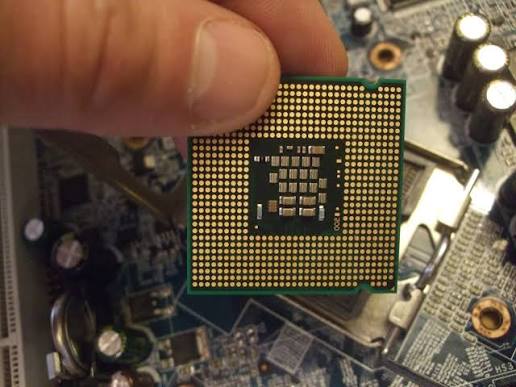
The Central Processing Unit, commonly called the CPU, is one of the most important computer components. It handles instructions, performs calculations, and manages many operations required by programs.
When you open an application, save a document, or perform calculations, the processor handles the instructions involved in those activities.
Modern processors contain multiple cores. Each core can handle its own tasks, allowing the CPU to manage several operations more efficiently. A quad-core processor has four cores, while an eight-core processor has eight.
Clock speed is another important processor specification. It is usually measured in gigahertz (GHz) and indicates how quickly a processor can perform cycles. However, clock speed alone does not determine overall performance. Processor architecture, core count, cache size, and power efficiency also matter.
For everyday activities such as browsing, writing documents, and watching videos, a modern entry-level processor may be sufficient. More demanding activities, including video editing, software development, and gaming, may benefit from a more powerful CPU.
Motherboard Connects All Hardware Components
The motherboard is the main circuit board inside a computer. It provides connections that allow different hardware components to communicate with each other.
The processor, memory, storage devices, graphics card, and other components connect directly or indirectly to the motherboard.
It also contains several important connections, including:
- CPU socket for installing a compatible processor
- RAM slots for memory modules
- Storage connections for SSDs and hard drives
- PCIe slots for graphics cards and expansion cards
- USB and other ports for external devices
- Power connectors for distributing electricity
Motherboard compatibility is important when building or upgrading a computer. A motherboard designed for one processor socket may not support another processor generation. Similarly, memory type and supported storage interfaces must match the motherboard specifications.
Choosing a suitable motherboard helps ensure that all hardware components work together correctly.
RAM Helps a Computer Handle Multiple Tasks
Random Access Memory, commonly known as RAM, is temporary memory that stores information currently being used by the computer.
When you open a browser, launch software, or work with multiple documents, the system uses RAM to keep frequently needed information available for quick access.
RAM is much faster than traditional hard drives and many other storage devices. However, it is temporary, meaning its stored information disappears when the computer is turned off.
The amount of RAM affects how smoothly a computer can handle multiple applications. A system with limited memory may become slow when several programs are running simultaneously.
For basic tasks, 8GB of RAM may be enough, although 16GB provides more flexibility for everyday multitasking. Users working with demanding applications, large files, or professional software may need 32GB or more.
RAM capacity is not the only consideration. Memory speed, generation, and compatibility with the motherboard also affect performance.
Storage Devices Keep Files and Applications
Unlike RAM, storage devices keep information even when a computer is switched off. They store the operating system, applications, documents, photographs, videos, and other files.
Two common storage technologies are Hard Disk Drives and Solid State Drives.
Hard Disk Drives
A Hard Disk Drive (HDD) stores information on rotating magnetic disks. A mechanical arm reads and writes data while the disks spin.
HDDs are often available in larger storage capacities at relatively affordable prices. They can be useful for storing large collections of photographs, videos, backups, and documents.
However, because they contain moving mechanical parts, they are generally slower than modern SSDs and can be more sensitive to physical damage.
Solid State Drives
A Solid State Drive (SSD) uses flash memory to store information. It has no moving mechanical parts, which makes it faster and quieter than a traditional HDD.
Computers with SSD storage usually start faster, open applications more quickly, and transfer files in less time.
NVMe SSDs use the PCIe interface and can provide much higher data transfer speeds than many SATA SSDs.
For most modern computers, an SSD is a practical choice for the operating system and frequently used applications. An additional HDD can still be useful when a large amount of affordable storage is required.
Graphics Card Handles Visual Processing
The Graphics Processing Unit (GPU), commonly called a graphics card, handles visual information and helps display images, videos, animations, and graphics on a screen.
Some computers use integrated graphics, which are built into the processor or included within the same chip package. These graphics solutions are suitable for general computing, video playback, and light gaming.
Other computers have a dedicated graphics card with its own memory and processing resources. Dedicated GPUs are designed for more demanding visual tasks.
They are especially useful for:
- Modern computer gaming
- Video editing and rendering
- 3D modeling and animation
- Graphic design
- Certain artificial intelligence workloads
The right graphics solution depends on how the computer will be used. People who mainly browse the internet or work with documents may not need a powerful dedicated graphics card.
Power Supply Unit Provides Electricity
The Power Supply Unit (PSU) converts electricity from a wall outlet into the appropriate power required by computer components.
Every major hardware component needs electricity to function. The PSU distributes power to the motherboard, processor, graphics card, storage devices, and other parts.
Power supplies come in different wattage ratings. A basic office computer may operate with a lower-wattage unit, while a gaming or workstation PC with a powerful graphics card may require a higher-capacity PSU.
Efficiency ratings, build quality, protection features, and available connectors are also important.
Choosing a reliable power supply is essential because an unsuitable or poor-quality unit can cause instability and potentially damage other components.
Cooling System Prevents Overheating
Computer components produce heat while working. The processor and graphics card are especially important sources of heat during demanding activities.
A cooling system helps remove this heat and maintain suitable operating temperatures.
Common cooling components include:
- CPU air coolers
- Liquid cooling systems
- Case fans
- Heat sinks
- Thermal paste
Air cooling uses fans and heat sinks to move heat away from important components. Liquid cooling uses circulating liquid to transfer heat toward a radiator, where fans help release it.
Proper airflow is important in desktop computers. If the case does not have enough ventilation, hot air may remain inside and increase component temperatures.
Overheating can lead to reduced performance, unexpected shutdowns, and long-term hardware problems. Regular cleaning and proper fan operation help maintain a healthy cooling system.
Input and Output Devices Make Computers Easy to Use
Input and output devices allow users to interact with a computer and receive information from it.
Input devices send information or commands to the computer. Common examples include:
- Keyboard
- Mouse
- Microphone
- Webcam
- Scanner
- Touchscreen
Output devices present information processed by the computer. Examples include monitors, speakers, headphones, and printers.
Some devices perform both input and output functions. A touchscreen, for instance, displays information and also detects touch commands.
These external devices are important because they make computers useful for communication, creative work, education, and everyday activities.
BIOS and UEFI Help Start the Computer
When a computer is switched on, it needs to check its hardware and prepare the system to load the operating system.
This process is handled by firmware stored on the motherboard. Modern computers generally use UEFI, while older systems commonly used BIOS.
UEFI or BIOS performs important startup functions, including checking essential hardware and identifying available boot devices.
After the initial startup process, the system begins loading the operating system from its storage device.
Users can sometimes access firmware settings to change boot order, enable hardware features, or adjust certain system configurations. However, changing unfamiliar settings without understanding their purpose can cause startup problems.
How All Computer Components Work Together
A computer does not depend on one component alone. Its performance comes from the combined work of different hardware parts.
For example, when you open a photo editing application, the processor handles instructions, RAM keeps active information available, and the storage device loads the software and saves project files. The graphics card helps display and process visual content, while the monitor shows the final result.
The motherboard connects these components, and the power supply provides the electricity they need. Meanwhile, the cooling system helps prevent excessive heat.
If one component is too slow or unsuitable for a particular task, it can affect the overall experience. This is why balanced hardware selection is important when purchasing or building a computer.
Choosing the Right Hardware for Your Needs
Before buying a computer or upgrading an existing one, consider what you plan to do with it.
For everyday use, a reliable processor, sufficient RAM, and an SSD can provide a smooth experience. Students and office workers may not need expensive graphics cards or advanced cooling systems.
Gamers should pay attention to the processor, dedicated GPU, RAM, storage, and power supply. Video editors and designers may benefit from additional memory, faster storage, and stronger graphics performance.
Compatibility should also be checked before purchasing individual components. Processor sockets, motherboard specifications, RAM generation, storage connections, case dimensions, and power requirements all matter.
It is usually better to choose hardware that works well together rather than spending most of the budget on one expensive component while ignoring the others.
Final Thoughts
Computer hardware includes several physical components that work together to make a computer function. The processor handles instructions, RAM supports active tasks, storage keeps important files, and the graphics card manages visual processing. Other parts, such as the motherboard, power supply, cooling system, and external devices, complete the system.
Understanding these components makes it easier to compare computers, recognize performance limitations, and plan future upgrades. Whether someone uses a computer for basic office work, gaming, education, or professional projects, knowing how its hardware operates can help them make smarter technology decisions.
